Since I am so nice, I am going to give away some free monograms today. If you email or leave me a comment today (March 31, 2008) I will give you one free monogram.
Here is how we do it:
- You give me: You & Your FI name (his last), your wedding date, wedding colors (be specific), location (if you want included), wedding style (contemporary etc) and any fonts you like.
- I create 4 monograms for you.
- You choose the monogram you like best & I give it to you FOR FREE.
You can decide to buy the other monograms for $5. At that time you can ask for edits to the monogram ( a different font, dingbat, etc).
Happy Wedding Planning!
BriannaNichole.
weddingmonograms@gmail.com

Monday, March 31, 2008
Sunday, March 30, 2008
Font for a Sunday
Good Evening everyone. I hope you are enjoing what is left of your weekend. Although, if you are like me you are dreding going back to work tomorrow. *sigh* Anyway, I thought this would be a good time to introduce you all to a new font. So, *drum roll please* the font for this evening is............Carpenter Script.
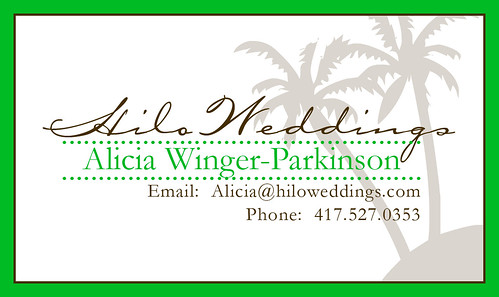
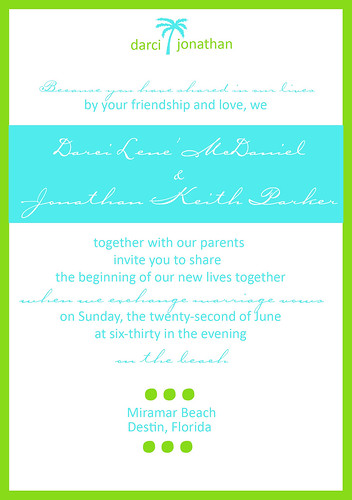
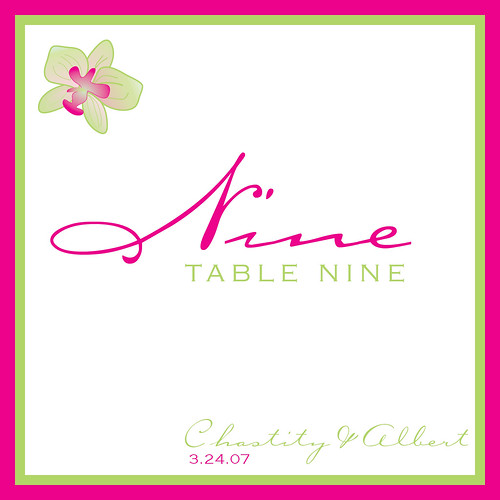
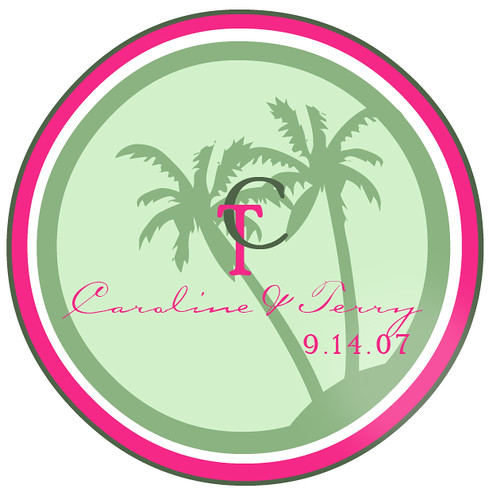
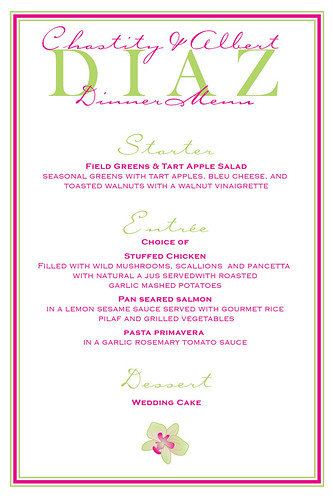
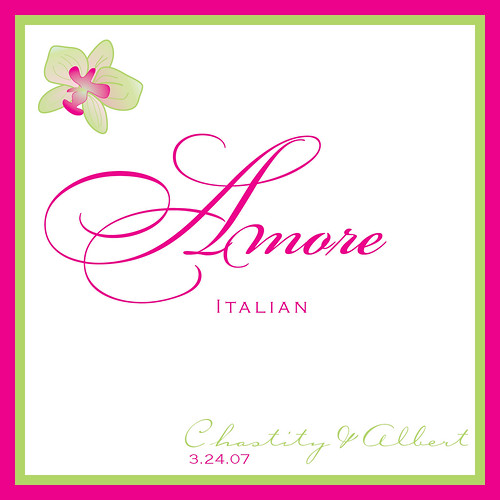
Carpenter Script (which you can download for free by clicking on Carpenter script listed above) is one of my favorite fonts. I like it because it is scripty (my own special font description word) yet is works great for a casual or contemporary wedding. I love that it looks sort of like handwriting so it gives you a more personal feel to your wedding paper products.

The only drawback, which my Hubby like to point out every time I use this font, is that it can be hard to read. You have to make sure that you have a design that is big enough where you can read the font. My suggestion is to play around with it a little.
Also, when you use it, I suggest you make the letters closer together. Sometimes they do not match up perfectly. It is pretty simple to do this in photoshop. You just need to:
1. Write & highlight your text
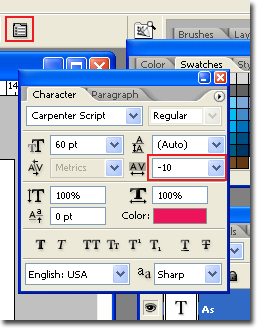
2. Select the Charachter and Paragraph Pallete
3. Slect -10 for the text spacing.
If you need help installing this, or any other font, please visit my blog entry on the subject: So, You Need Help Installing Fonts
In fact, this blog header is using the Carolina font.





Happy Planning,
BriannaNichole!
Carpenter Script (which you can download for free by clicking on Carpenter script listed above) is one of my favorite fonts. I like it because it is scripty (my own special font description word) yet is works great for a casual or contemporary wedding. I love that it looks sort of like handwriting so it gives you a more personal feel to your wedding paper products.

The only drawback, which my Hubby like to point out every time I use this font, is that it can be hard to read. You have to make sure that you have a design that is big enough where you can read the font. My suggestion is to play around with it a little.
Also, when you use it, I suggest you make the letters closer together. Sometimes they do not match up perfectly. It is pretty simple to do this in photoshop. You just need to:
1. Write & highlight your text
2. Select the Charachter and Paragraph Pallete
3. Slect -10 for the text spacing.

If you need help installing this, or any other font, please visit my blog entry on the subject: So, You Need Help Installing Fonts
In fact, this blog header is using the Carolina font.


Happy Planning,
BriannaNichole!
Wednesday, March 26, 2008
The Illusive Damask Design
Like the siren song, the damask design, seductively calls to brides. It speaks of a classy and elegant wedding. In the end it becomes costly, frustrating and annoying. Worry not, for I have found a easy way to recreate the Damask design that is not costly or frustrating.
How can I attain such a feat, you ask? Like many others I was annoyed because I could not find a Damask dingbat to save my life. Why not? The answer is simple; Damask, by definition, is a design or pattern. A dingbat is usually a single design. To create the Damask look you will need to create the design.
Your first step is to find a design that you can use to create the Damask look. There are a few way that you can do this;
1) Look for dingbats that could be made into the Damask pattern. Try searching Google for; Ornamental dingbats, flourish ding bats, design dingbats.
2) Photoshop Patterns. Photoshop patterns are just that, its a pattern that you can use with the paintbucket tool. They are very limited and I would not suggest this avenue unless you are familiar with Photoshop patterns.
3) Try looking for clipart that has the Damask style shape. The only problem with this is that you are limited to the size and color of the design you download. Most of the good ones you will have to pay for.
and the way that we are going to use....
4) Photoshop Brushes. There are not may out there, again because they do not call them Damask designs. You will have to look for Ornamental or Flower Photoshop brushes. I have found a few that will work.
The Photoshop Brushes that I liked the best were from http://seishido.biz. I found three that would really work:
You can find them all in the Ornamental set under BushyCats. Each brush is Dollar and worth it IMO. The only thing that made me mad was that I had to wait for her to email me the brushes. Granted it only took her about an hour or so, but I kind of expect to get what I pay for right away. I guess I am just impatient *sigh*.
For this tutorial we are going to use the Requiem Brush. If you need some help installing and using Photoshop Brushes, take a look at my blog on the subject.
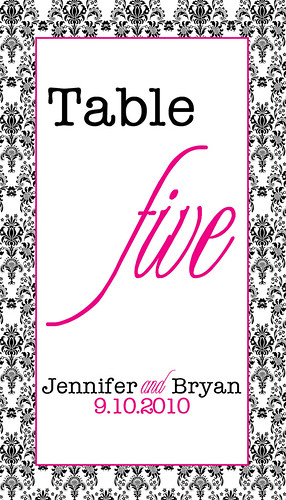
Here is the look that we are going for:
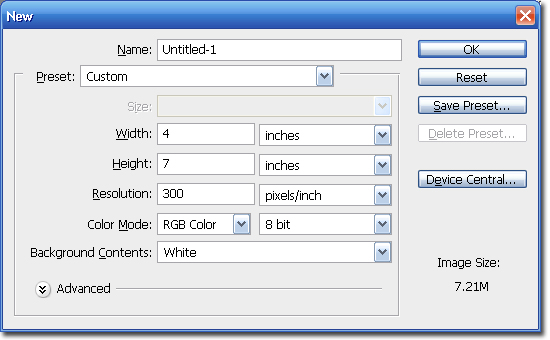
Step 1 Open Photoshop and create a new Canvas: Ctrl + N or File > New
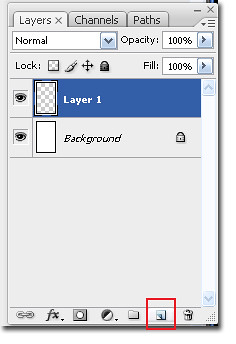
Step 2 Click on the Add New Layer icon.
Step 3 Select the Paint Brush Tool.
Step 4 Click on the Down-Arrow in the brush tool bar, and then click on the Left-Arrow in the brush pallet.
Step 5 Select your brush from the list. In this case I am going to select the Seishido.biz_requiem brush. Click Ok.
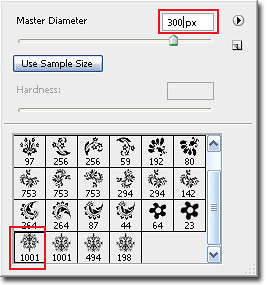
Step 6 Select the first brush on the last row, and then change the size to 300 pixels.
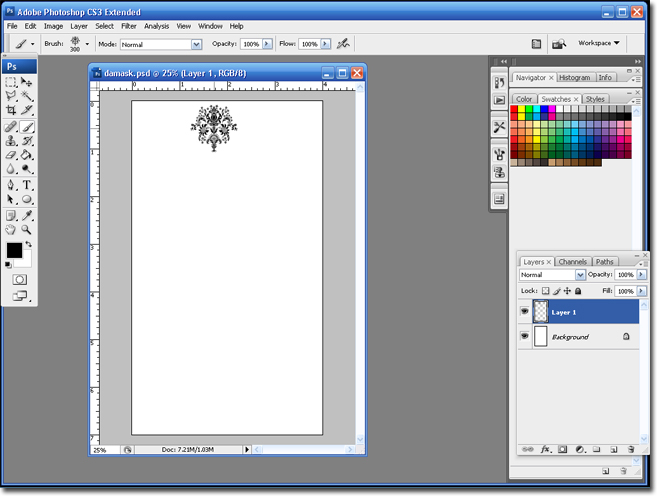
Step 7 Click once on the canvas, make sure layer 1 is highlighted (it will appear blue).
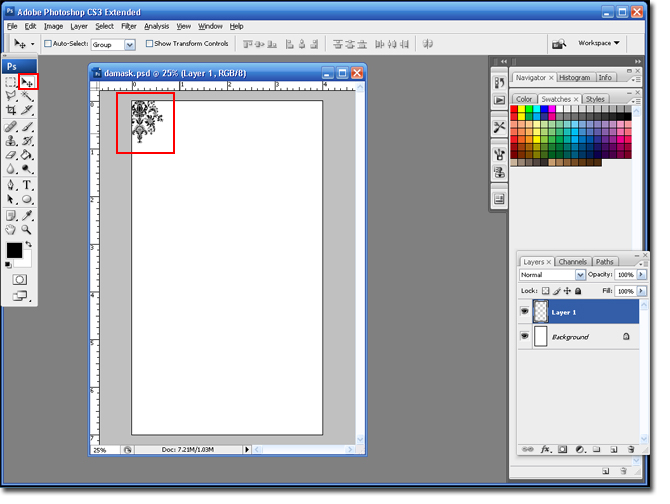
Step 8 Select the Move Tool and move layer 1 to the top right hand corner of the canvas. This will allow the Damask design to go all the way to the end of the canvas.
Step 9 Duplicate Layer 1: Ctrl + J.
This next part may be a bit confusing. You are going to use the arrows on your keyboard to move the design around on your canvas. You will count how many times you hit each key to make sure each image is perfectly centered. The screen shots will help.
Step 10 With Layer 1 Copy highlighted; you are going to hit the Right-arrow on your keyboard 65 times.
Step 11 You are going to duplicate the layer and move it to the right 4 more times. This will fill the top row. Notice the last image will be completely off the page.
Step 12 Highlight Layer 1 and all the Layer 1 copies, make sure to hold down the Ctrl button so you can select them at the same time.
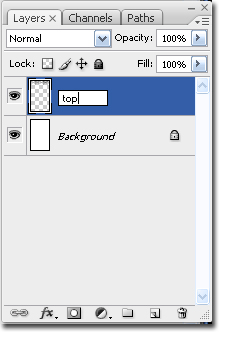
Step 13 Merge the layers: Layer > Merge Layers or Ctrl + E. This will make all the Damask images on one layer. Rename the layer to Top.
Step 14 Duplicate the 'Top' Layer; Ctrl + J. It will show up as 'Top Copy'.
Step 15 With the 'Top Copy' layer highlighted; use the Down-arrow to move the layer down 56 times.
Step 16 Use the Left-arrow, on your keyboard, to move the layer to the left 33 times.
Yay, you have successfully (hopefully) completed your first two rows of your Damask design.
Step 17 Hold down the Ctrl button and highlight the Top and Top Copy layers. Merge the layers: Layer > Merge Layers or Ctrl + E.
This will rename the layer to 'Top Copy'.
Step 18 Duplicate the 'Top' Layer; Ctrl + J.The new layer will be named 'Top Copy 2'. Use the Down arrow to move the layer 112 times (56+56).
Step 19 Keep duplicating and moving down the layers until the whole canvas is filled with your design.
AT this point you have finished your Damask design. There are a lot of things that you can do with it, at this point. I am going to make a table number from mine.
Step 20 I am going to merge all my Layers (except the background layer) so it doesn't get confusing. Hold down the Ctrl button and highlight Top Copy layers. Merge the layers: Layer > Merge Layers or Ctrl + E. Add a new Layer.
Step 21 Change the foreground color to white, and select the Marquee tool.
Step 22 Draw a square leaving 1/2 and inch on every side. Select the Paintbucket Tool and fill it in with white. De-select the square: Ctrl + D.
Step 23 Click on the Add a New Layer Style and select Stroke.
Step 24 Here are the settings I used. Click Ok to save the settings.
Step 25 Add a new layer and select the Type tool to add in your table information.
Be creative and play around with the sizing and shapes.
Hope you enjoyed the tutorial,
Brianna!
How can I attain such a feat, you ask? Like many others I was annoyed because I could not find a Damask dingbat to save my life. Why not? The answer is simple; Damask, by definition, is a design or pattern. A dingbat is usually a single design. To create the Damask look you will need to create the design.
Your first step is to find a design that you can use to create the Damask look. There are a few way that you can do this;
1) Look for dingbats that could be made into the Damask pattern. Try searching Google for; Ornamental dingbats, flourish ding bats, design dingbats.
2) Photoshop Patterns. Photoshop patterns are just that, its a pattern that you can use with the paintbucket tool. They are very limited and I would not suggest this avenue unless you are familiar with Photoshop patterns.
3) Try looking for clipart that has the Damask style shape. The only problem with this is that you are limited to the size and color of the design you download. Most of the good ones you will have to pay for.
and the way that we are going to use....
4) Photoshop Brushes. There are not may out there, again because they do not call them Damask designs. You will have to look for Ornamental or Flower Photoshop brushes. I have found a few that will work.
The Photoshop Brushes that I liked the best were from http://seishido.biz. I found three that would really work:
You can find them all in the Ornamental set under BushyCats. Each brush is Dollar and worth it IMO. The only thing that made me mad was that I had to wait for her to email me the brushes. Granted it only took her about an hour or so, but I kind of expect to get what I pay for right away. I guess I am just impatient *sigh*.
For this tutorial we are going to use the Requiem Brush. If you need some help installing and using Photoshop Brushes, take a look at my blog on the subject.
Here is the look that we are going for:
Step 1 Open Photoshop and create a new Canvas: Ctrl + N or File > New
Step 2 Click on the Add New Layer icon.
Step 3 Select the Paint Brush Tool.

Step 4 Click on the Down-Arrow in the brush tool bar, and then click on the Left-Arrow in the brush pallet.
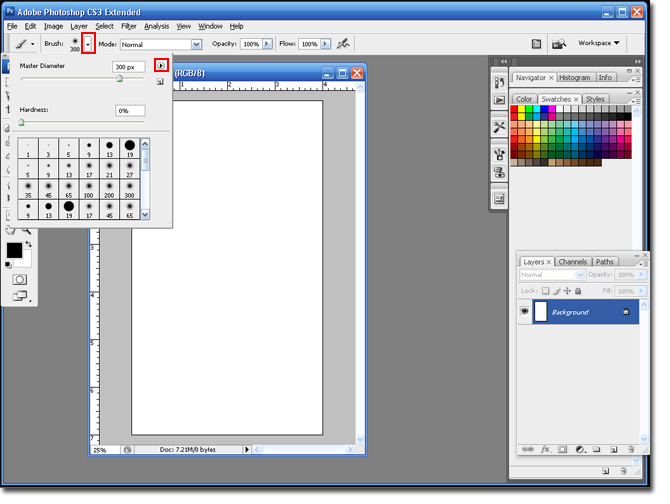
Step 5 Select your brush from the list. In this case I am going to select the Seishido.biz_requiem brush. Click Ok.
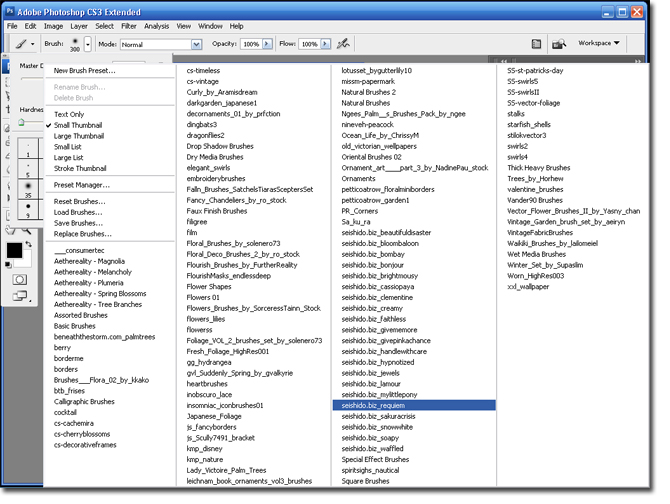
Step 6 Select the first brush on the last row, and then change the size to 300 pixels.
Step 7 Click once on the canvas, make sure layer 1 is highlighted (it will appear blue).
Step 8 Select the Move Tool and move layer 1 to the top right hand corner of the canvas. This will allow the Damask design to go all the way to the end of the canvas.
Step 9 Duplicate Layer 1: Ctrl + J.
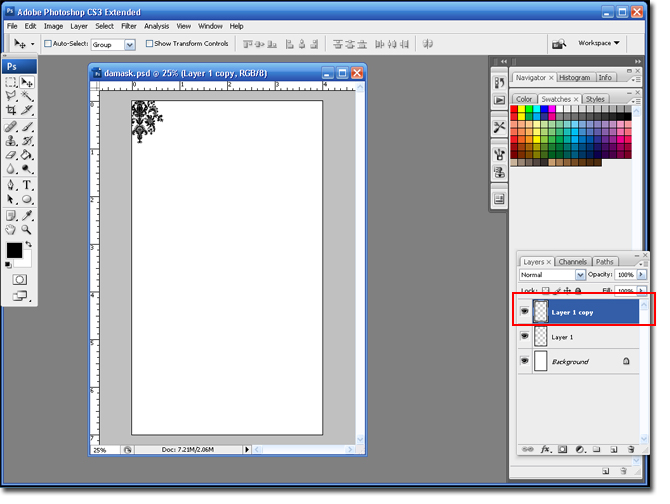
This next part may be a bit confusing. You are going to use the arrows on your keyboard to move the design around on your canvas. You will count how many times you hit each key to make sure each image is perfectly centered. The screen shots will help.
Step 10 With Layer 1 Copy highlighted; you are going to hit the Right-arrow on your keyboard 65 times.
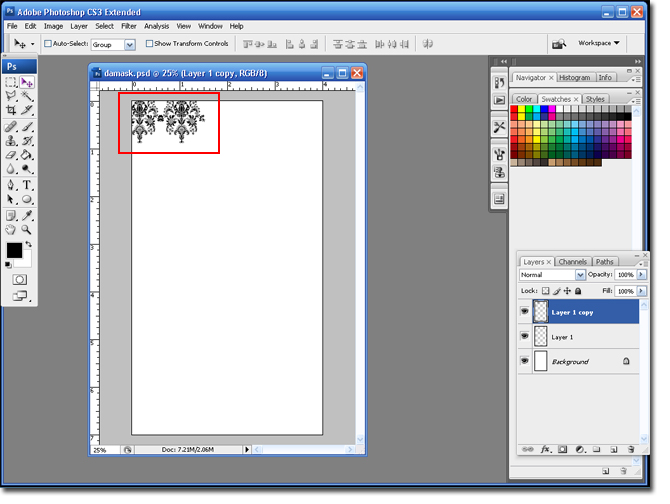
Step 11 You are going to duplicate the layer and move it to the right 4 more times. This will fill the top row. Notice the last image will be completely off the page.
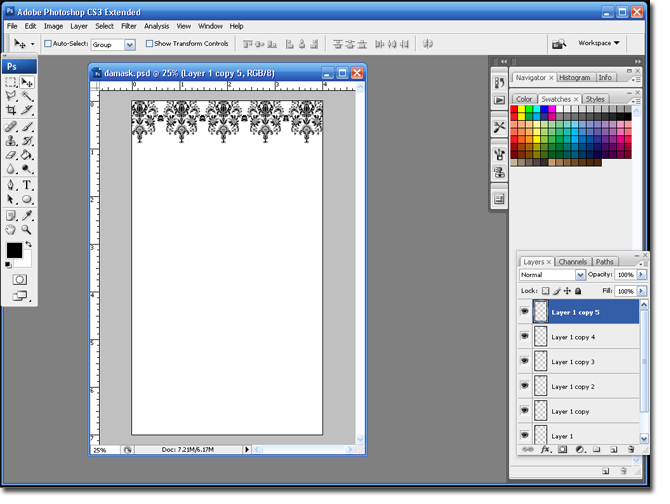
Step 12 Highlight Layer 1 and all the Layer 1 copies, make sure to hold down the Ctrl button so you can select them at the same time.
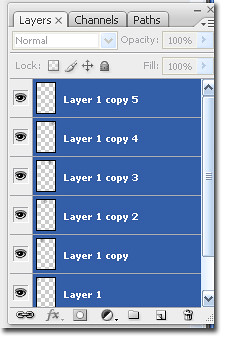
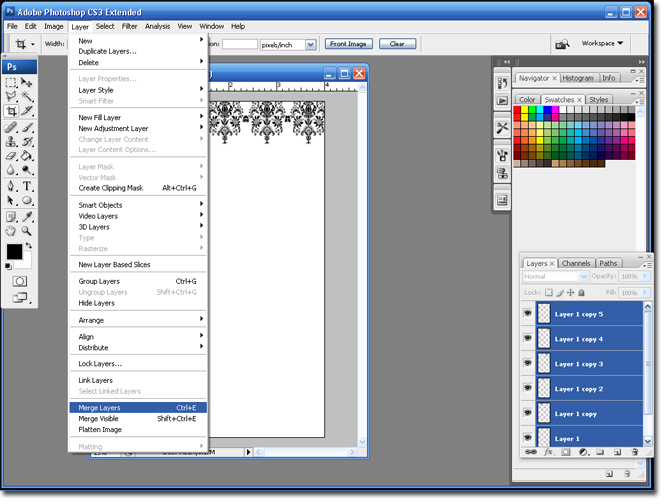
Step 13 Merge the layers: Layer > Merge Layers or Ctrl + E. This will make all the Damask images on one layer. Rename the layer to Top.
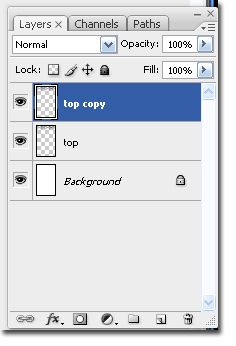
Step 14 Duplicate the 'Top' Layer; Ctrl + J. It will show up as 'Top Copy'.
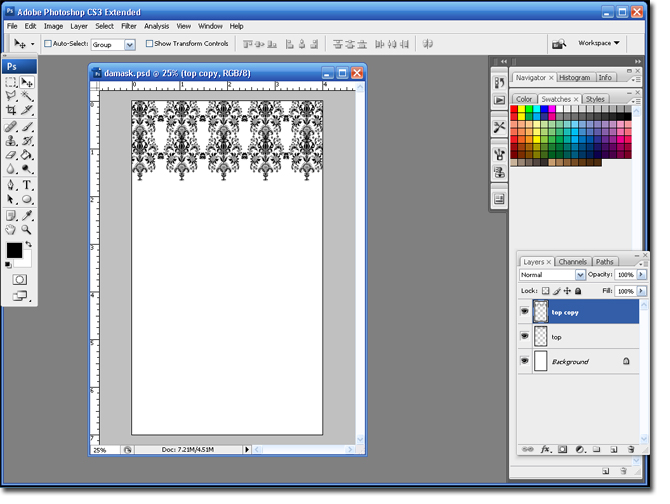
Step 15 With the 'Top Copy' layer highlighted; use the Down-arrow to move the layer down 56 times.
Step 16 Use the Left-arrow, on your keyboard, to move the layer to the left 33 times.
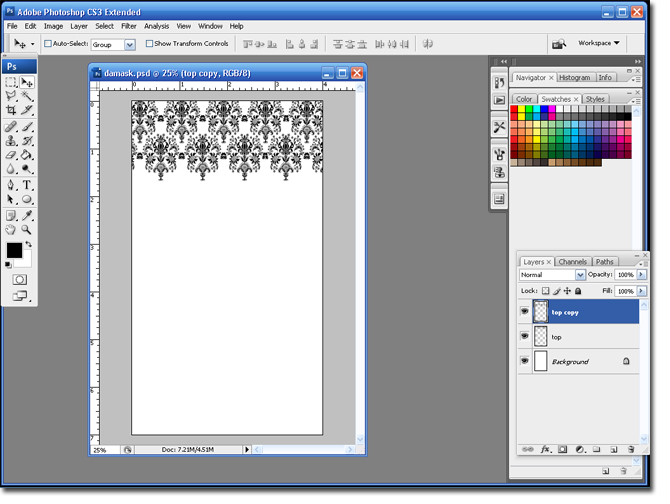
Yay, you have successfully (hopefully) completed your first two rows of your Damask design.
Step 17 Hold down the Ctrl button and highlight the Top and Top Copy layers. Merge the layers: Layer > Merge Layers or Ctrl + E.
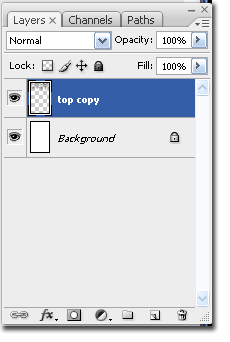
This will rename the layer to 'Top Copy'.
Step 18 Duplicate the 'Top' Layer; Ctrl + J.The new layer will be named 'Top Copy 2'. Use the Down arrow to move the layer 112 times (56+56).
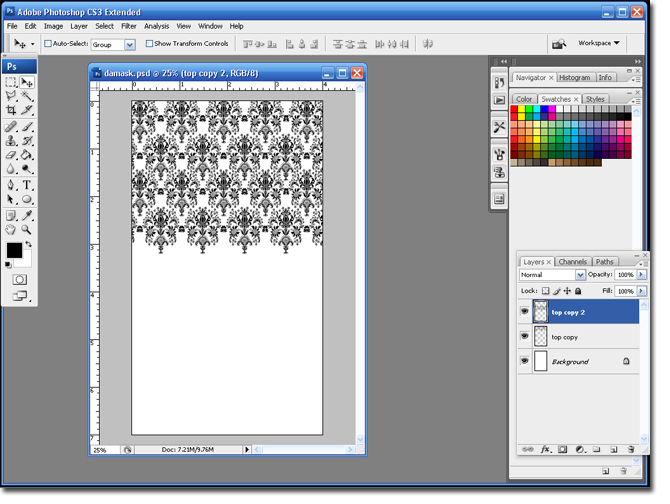
Step 19 Keep duplicating and moving down the layers until the whole canvas is filled with your design.
AT this point you have finished your Damask design. There are a lot of things that you can do with it, at this point. I am going to make a table number from mine.
Step 20 I am going to merge all my Layers (except the background layer) so it doesn't get confusing. Hold down the Ctrl button and highlight Top Copy layers. Merge the layers: Layer > Merge Layers or Ctrl + E. Add a new Layer.
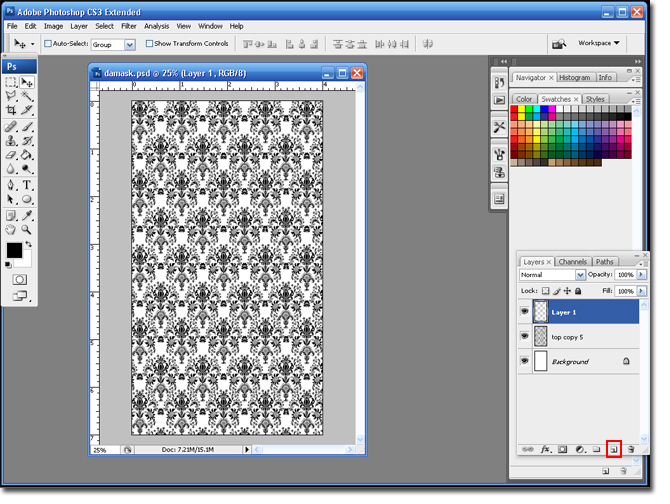
Step 21 Change the foreground color to white, and select the Marquee tool.

Step 22 Draw a square leaving 1/2 and inch on every side. Select the Paintbucket Tool and fill it in with white. De-select the square: Ctrl + D.
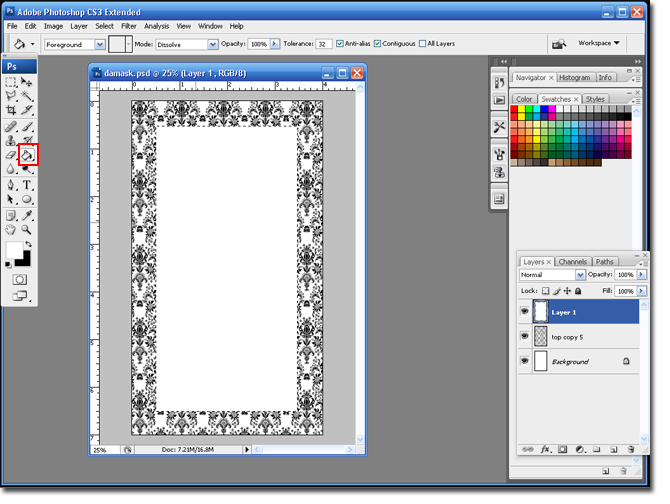
Step 23 Click on the Add a New Layer Style and select Stroke.
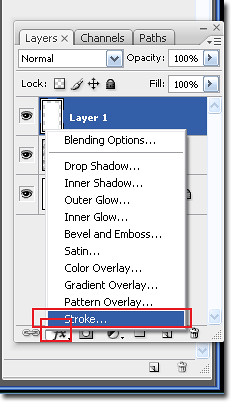
Step 24 Here are the settings I used. Click Ok to save the settings.
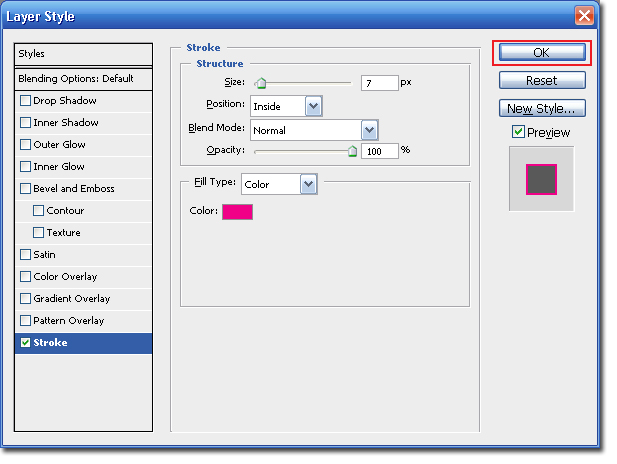
Step 25 Add a new layer and select the Type tool to add in your table information.
Be creative and play around with the sizing and shapes.
Hope you enjoyed the tutorial,
Brianna!
Tuesday, March 25, 2008
Triple Box Monogram Tutorial
I saw this monogram on an invitation and I fell in love with it. There is really so much that you can do with it. I could see it on an invitation, program, menu or even on an aisle runner.
There are a lot of steps to this tutorial, but don't get discouraged. It may seem like a lot of steps but they are pretty easy and very similar.
Good Luck!
So here is the design that we are going for:

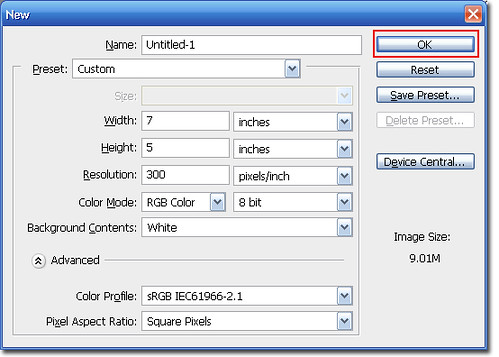
Step 1 Open Photoshop and create a new Canvas: Ctrl + N or File > New. The canvas should be the following setting:
Step 2 Create a new layer and select the Marquee tool.
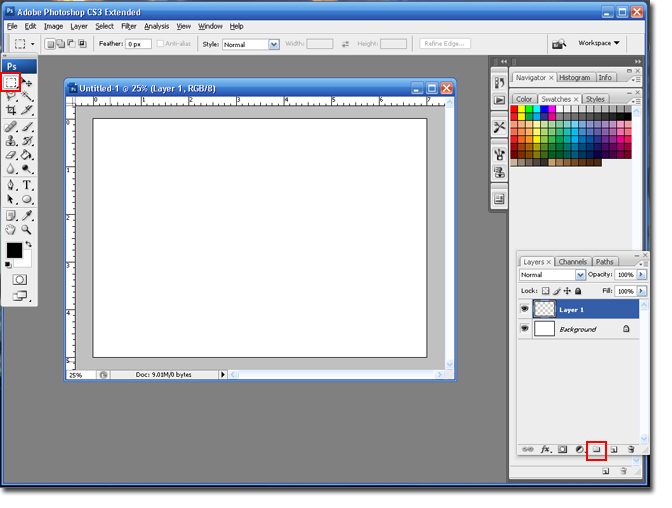
Step 3 Draw a square 1 inch x 1 inch. Draw the square by left-clicking on the mouse and dragging it to the right.

Note: You can turn the rulers on by hitting Ctrl + R.
Step 4 Select the Paintbucket tool and click on the canvas to fill in your color.
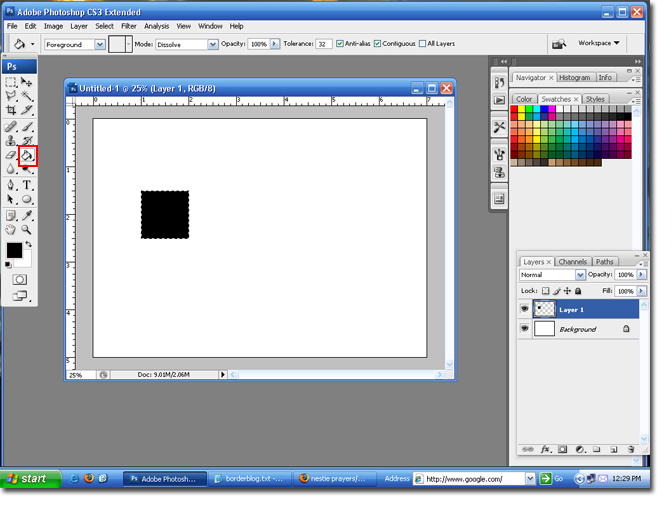
Step 5 Go to Select > Modify > Contract.

Step 6 Set the contact size to 6 pixels, and then click the Ok button to save the settings.
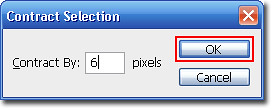
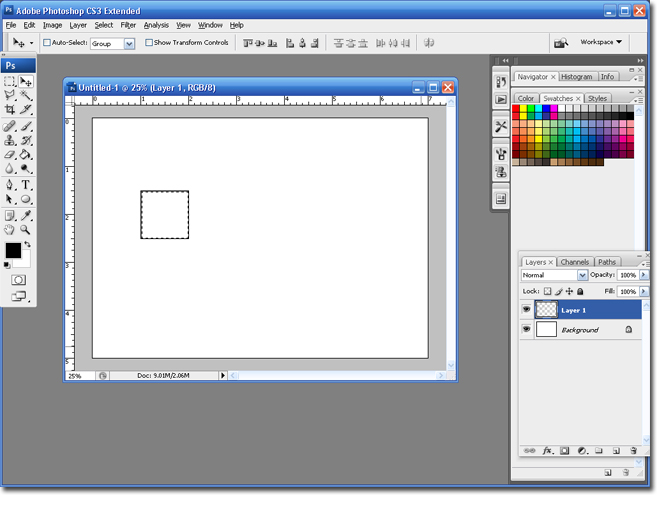
Step 7 Hit the delete button button on your keyboard and follow steps 5 and 6.
Step 8 Select the Paintbucket tool and click on the canvas to fill in your color. Select Ctrl + D to deselect (remove the Dancing Ants).
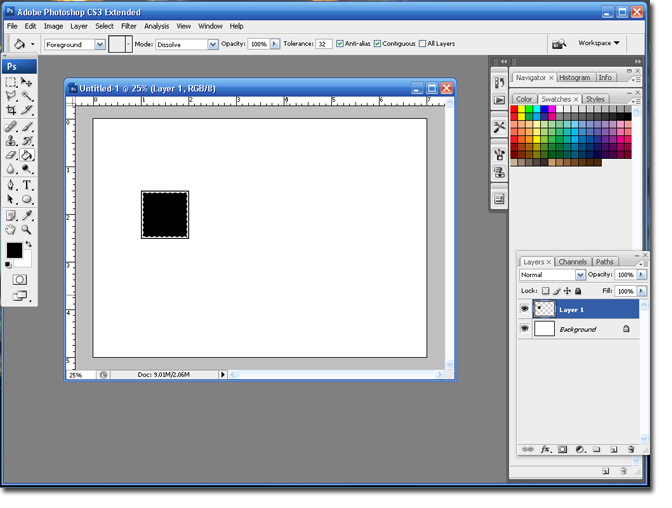
Your Smaller square is finished.
Step 9 Select the Type Tool, set the font to Times and the size to 90.
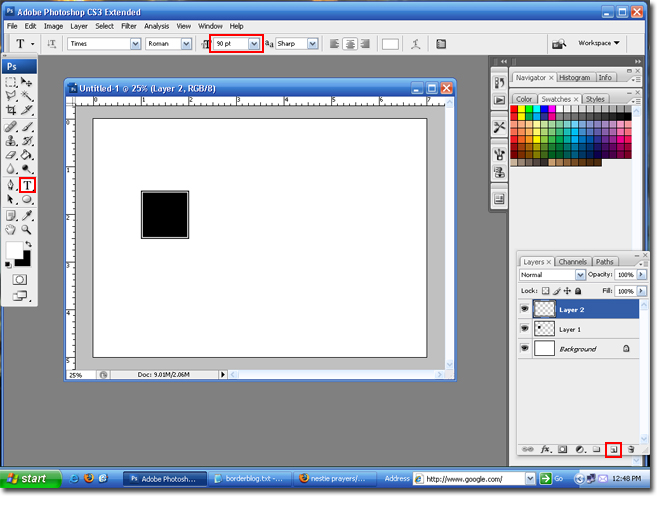
Step 10 Type in the first letter of the Bride's name. Depending on the letter you use, you may need to adjust the size to better fit in the box.
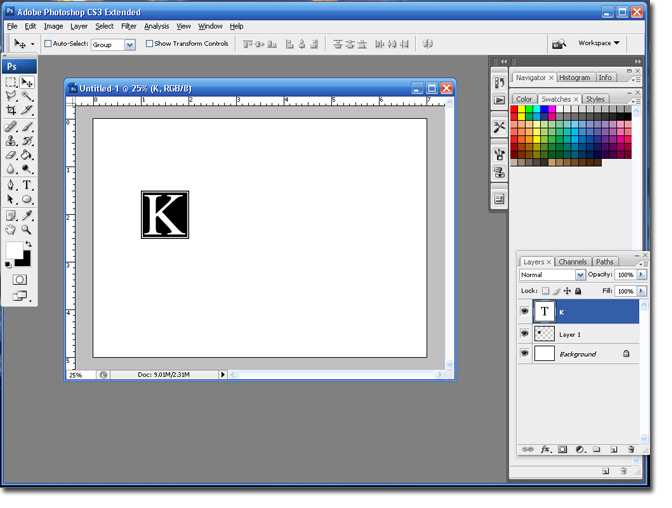
Step 11 In the layers pallet; select the layer with the box and the layer with the first initial. Hold down the Ctrl button to select both layers at the same time. They will both appear blue.

Step 12 Drag those layers to the Add New Layer icon. This will duplicate both layers.

Step 13 Select the Move Tool and hold down the Shift key. Move the 2nd box and initial to the right. Make sure to leave enough room for another box, in the center.
Step 14 Select the Type Tool and highlight the second letter and change the letter to the Groom's first name letter. Click on the Green Check when you are finished.
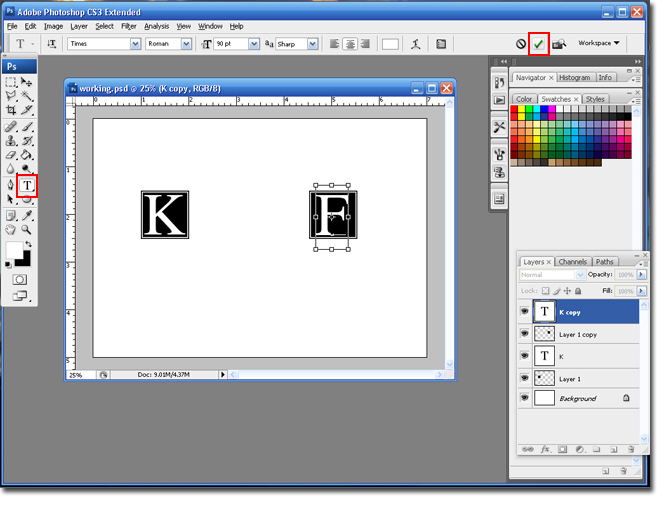
Your second Box is Finished!
Step 15 Add a new layer and select the Marquee Tool.
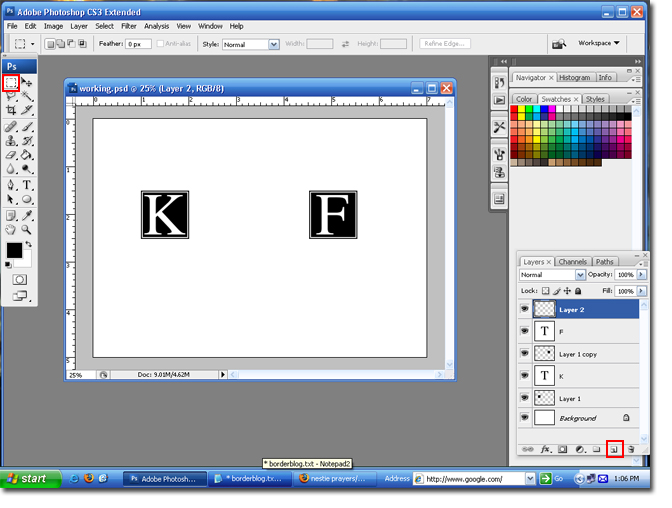
Step 16 Draw a square 2 inches x 2 inches. Select the Paintbucket Tool and fill in the square.
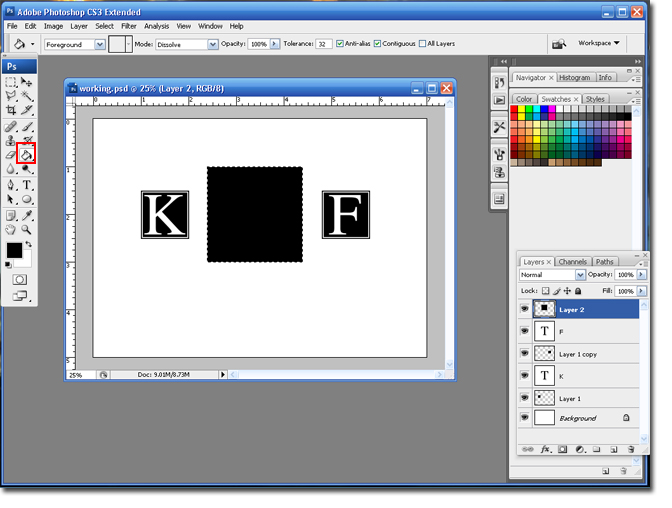
Step 17 Go to Select > Modify > Contract.

Step 18 Set the contact size to 8 pixels, and then click the Ok button to save the settings.
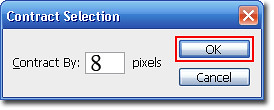
Step 19 Hit the Delete button on your keyboard.
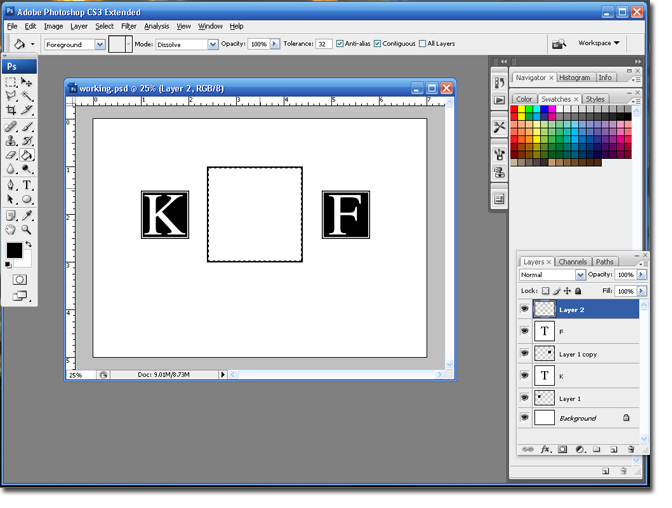
Step 20 Follow Steps 17 & 18.
Step 21 Select the Paintbucket Tool and fill in the square.
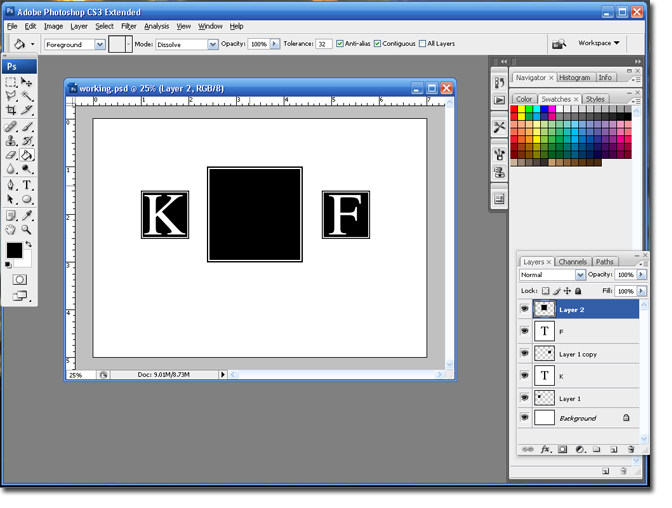
Step 22 Select the Type tool, set the font to Brock Script, or another script font and set the size to 120.
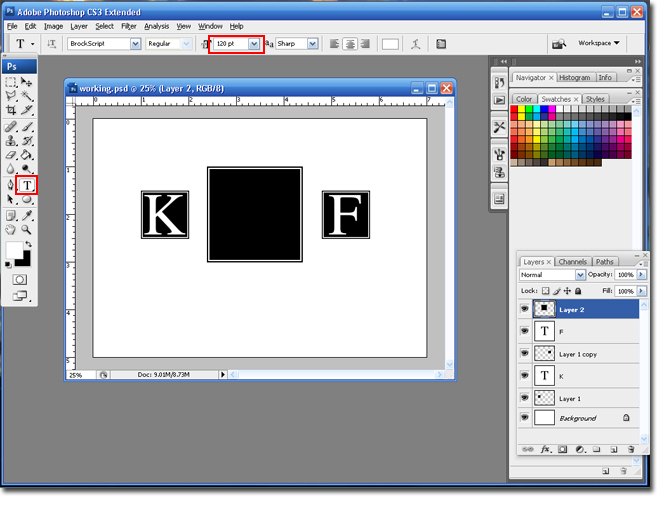
Note: Depending on the letter you may need to adjust the size of the font.
Step 23 In the third box; type in the first initial of the groom's last name.

Step 24 Select the Crop Tool and trim your canvas.
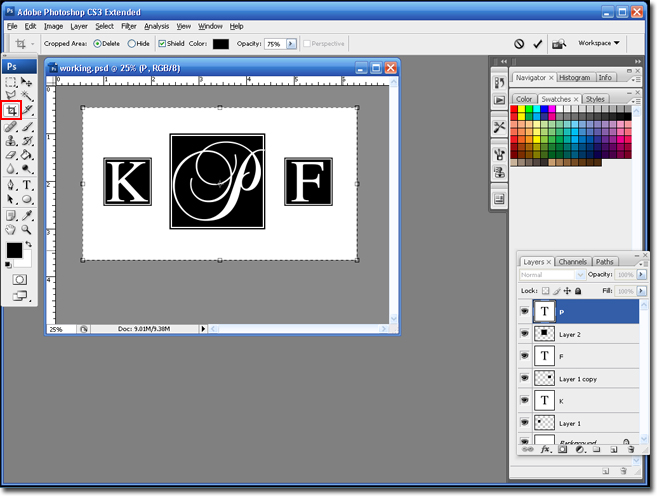
You are finished!
There are a lot of steps to this tutorial, but don't get discouraged. It may seem like a lot of steps but they are pretty easy and very similar.
Good Luck!
So here is the design that we are going for:

Step 1 Open Photoshop and create a new Canvas: Ctrl + N or File > New. The canvas should be the following setting:

Step 2 Create a new layer and select the Marquee tool.

Step 3 Draw a square 1 inch x 1 inch. Draw the square by left-clicking on the mouse and dragging it to the right.

Note: You can turn the rulers on by hitting Ctrl + R.
Step 4 Select the Paintbucket tool and click on the canvas to fill in your color.

Step 5 Go to Select > Modify > Contract.

Step 6 Set the contact size to 6 pixels, and then click the Ok button to save the settings.

Step 7 Hit the delete button button on your keyboard and follow steps 5 and 6.

Step 8 Select the Paintbucket tool and click on the canvas to fill in your color. Select Ctrl + D to deselect (remove the Dancing Ants).

Your Smaller square is finished.
Step 9 Select the Type Tool, set the font to Times and the size to 90.

Step 10 Type in the first letter of the Bride's name. Depending on the letter you use, you may need to adjust the size to better fit in the box.

Step 11 In the layers pallet; select the layer with the box and the layer with the first initial. Hold down the Ctrl button to select both layers at the same time. They will both appear blue.

Step 12 Drag those layers to the Add New Layer icon. This will duplicate both layers.

Step 13 Select the Move Tool and hold down the Shift key. Move the 2nd box and initial to the right. Make sure to leave enough room for another box, in the center.
Step 14 Select the Type Tool and highlight the second letter and change the letter to the Groom's first name letter. Click on the Green Check when you are finished.

Your second Box is Finished!
Step 15 Add a new layer and select the Marquee Tool.

Step 16 Draw a square 2 inches x 2 inches. Select the Paintbucket Tool and fill in the square.

Step 17 Go to Select > Modify > Contract.

Step 18 Set the contact size to 8 pixels, and then click the Ok button to save the settings.

Step 19 Hit the Delete button on your keyboard.

Step 20 Follow Steps 17 & 18.
Step 21 Select the Paintbucket Tool and fill in the square.

Step 22 Select the Type tool, set the font to Brock Script, or another script font and set the size to 120.

Note: Depending on the letter you may need to adjust the size of the font.
Step 23 In the third box; type in the first initial of the groom's last name.

Step 24 Select the Crop Tool and trim your canvas.

You are finished!
Monday, March 17, 2008
St. Patrick's Day Shamrock Monogram
In honor of St Patty's day I thought it might be nice to do a Shamrock monogram. So here is the look we are going for:

Step 1 Open Photoshop and create a new canvas, Ctrl + N or File > New.

Step 2 Use the Color tool and set the foreground color to green and the background color to black.

Step 3 Select the Custom Shape Tool.

Step 4 Set the shape to the Clover shape.

Step 5 Hold down the left-click button on your mouse and drag it to draw your shape. Don't worry if it is not centered because we can center it with the move tool later. The clover will appear in a new layer automatically.

Step 6 Create a new layer and change the foreground color to black.
Step 7 Select the Type Tool and select a script font. I am going to use the Sloop Script font. Type in your names.

Step 8 Create a new layer, make the text size smaller and type in your wedding date.

Step 9 Select the Move Tool and move around the layers until you are happy with the results.

Step 10 Select the Crop Tool and trip the canvas as needed.

You are finished!! If you really want to get fun a creative try downloading some Shamrock Photoshop brushes.

Step 1 Open Photoshop and create a new canvas, Ctrl + N or File > New.

Step 2 Use the Color tool and set the foreground color to green and the background color to black.

Step 3 Select the Custom Shape Tool.

Step 4 Set the shape to the Clover shape.

Step 5 Hold down the left-click button on your mouse and drag it to draw your shape. Don't worry if it is not centered because we can center it with the move tool later. The clover will appear in a new layer automatically.

Step 6 Create a new layer and change the foreground color to black.
Step 7 Select the Type Tool and select a script font. I am going to use the Sloop Script font. Type in your names.

Step 8 Create a new layer, make the text size smaller and type in your wedding date.

Step 9 Select the Move Tool and move around the layers until you are happy with the results.

Step 10 Select the Crop Tool and trip the canvas as needed.

You are finished!! If you really want to get fun a creative try downloading some Shamrock Photoshop brushes.
Thursday, March 13, 2008
Letter Behind Monogram Tutorial
I call this monogram the 'Letter Behind' because I really had no idea what else to call it. This monogram consists of the couples names with their last name (or soon to be last name) first initial behind the names. Thus the name 'Letter Behind' monogram.
This monogram can be done in two ways, its just a matter of switching the type of fonts that we use. I'll show you two different ways.
Here is look #1:

Step 1 Open a new canvas in Photoshop. Mine monogram is going to be Pink and Black.

Step 2 Select the color you want for the names in front. I am going to use black. Select the Type tool. and a good Serif or Block font, nothing that is a script. I am going to use Book Antiqua, which is built into Windows.

Step 3 Type in you and your FIs names. Use the Move tool to center your text.

Step 4 Add a new layer by selecting the Add a New Layer icon.

Step 5 Change; the font color, the font size (somewhere around 150) and the font to a script font (I am using the Brock Font). Type in the first initial of your France's last name.

Step 6 If you notice the last name is now in front of the names. If you grab the initial layer and drag it below the names layer it will be behind the names.

Step 7 Depending on your colors you may not be able to read the names. If your last name initial is too dark you can lower the opacity by using the slider in your Layer Pallet

Step 8 Use the same font as the initial to add the date.

Step 9 Use the Crop tool to get rid of the extra canvas.

You are finished
The second way to do this tutorial is to have the names in a script font and the last name initial in a block or serif font. Use the steps I have provided but just switch the font types.
Hope this tutorial was helpful!
BriannaNichole!
This monogram can be done in two ways, its just a matter of switching the type of fonts that we use. I'll show you two different ways.
Here is look #1:

Step 1 Open a new canvas in Photoshop. Mine monogram is going to be Pink and Black.

Step 2 Select the color you want for the names in front. I am going to use black. Select the Type tool. and a good Serif or Block font, nothing that is a script. I am going to use Book Antiqua, which is built into Windows.

Step 3 Type in you and your FIs names. Use the Move tool to center your text.

Step 4 Add a new layer by selecting the Add a New Layer icon.

Step 5 Change; the font color, the font size (somewhere around 150) and the font to a script font (I am using the Brock Font). Type in the first initial of your France's last name.

Step 6 If you notice the last name is now in front of the names. If you grab the initial layer and drag it below the names layer it will be behind the names.

Step 7 Depending on your colors you may not be able to read the names. If your last name initial is too dark you can lower the opacity by using the slider in your Layer Pallet

Step 8 Use the same font as the initial to add the date.

Step 9 Use the Crop tool to get rid of the extra canvas.

You are finished
The second way to do this tutorial is to have the names in a script font and the last name initial in a block or serif font. Use the steps I have provided but just switch the font types.
Hope this tutorial was helpful!
BriannaNichole!
What You Need Help With Answers I
Hello and happy Thursday to all! I received a few responses to my What Do You Need Help with in Photoshop blog entry. I wanted to take a minute to answer them.
kwhited asked:
- How she could save a Photoshop file and import it into Word so she could print it at home.
Dear kwhited,
First off I would not put any files into Microsoft Word. When you insert the file it compresses the image and lowers the resolution (quality). If you are just trying to print it from home you can save the Photoshop design as a .tiff. This is like a .jpg but it allows you to save the layers of the file and it doesn't compress the image as much as a .jpg.
When you get home just open the file in the Windows Viewer (built in program in Windows) and print it from there.
This should give you the best results as well as save you the time of putting the file into a word document.
MunleysWifey asked:
- What all the tools were in Photoshop.
- How to make a 10x10 wedding album page so she could upload it. She wanted to be able to cut a picture in 1/2 so one was on the right page and 1/2 was on the left.
Dear MunleysWifey,
You are sure asking for a tall order! Instead of reinventing the wheel I will refer you to a great tutorial for Photoshop beginners: http://www.g3fusion.com/?p=8. This tutorial will walk you through all the basic functions of the Photoshop Tools.
Hopefully I understand what you are looking for with the other request, if not please leave me a comment to let me know. I will show you how to cut a picture in half and save each image as a separate file.
Step 1 Open your photo in Photoshop: From Photoshop you can hit Ctrl + O, then select the location of your image.

Step 2 Turn on the Rulers by hitting Ctrl + R. Or you can go to View . Rulers.

Step 3 Select the square Marquee tool and select 1/2 of the picture.
Step 4 Hit Ctrl + C to select what you drew a selection around.
Step 5 Hit Ctrl + N to open a new canvas. This canvas will automatically be the size you need (it does that when you select ctrl + c). Hit Hit Ctrl + V to paste your image onto the new canvas.

Step 6 Go back to the original image and Inverse, Shift + Ctrl + I or Select > Inverse, the selection. This will select the other half of the image.
Follow steps 4 and 5 for this section and you are finished.
Original Photo

Right Half

Left Half

I hope these tutorials answered some questions and were of help.
Thanks,
BriannaNichole!
kwhited asked:
- How she could save a Photoshop file and import it into Word so she could print it at home.
Dear kwhited,
First off I would not put any files into Microsoft Word. When you insert the file it compresses the image and lowers the resolution (quality). If you are just trying to print it from home you can save the Photoshop design as a .tiff. This is like a .jpg but it allows you to save the layers of the file and it doesn't compress the image as much as a .jpg.
When you get home just open the file in the Windows Viewer (built in program in Windows) and print it from there.
This should give you the best results as well as save you the time of putting the file into a word document.
MunleysWifey asked:
- What all the tools were in Photoshop.
- How to make a 10x10 wedding album page so she could upload it. She wanted to be able to cut a picture in 1/2 so one was on the right page and 1/2 was on the left.
Dear MunleysWifey,
You are sure asking for a tall order! Instead of reinventing the wheel I will refer you to a great tutorial for Photoshop beginners: http://www.g3fusion.com/?p=8. This tutorial will walk you through all the basic functions of the Photoshop Tools.
Hopefully I understand what you are looking for with the other request, if not please leave me a comment to let me know. I will show you how to cut a picture in half and save each image as a separate file.
Step 1 Open your photo in Photoshop: From Photoshop you can hit Ctrl + O, then select the location of your image.

Step 2 Turn on the Rulers by hitting Ctrl + R. Or you can go to View . Rulers.

Step 3 Select the square Marquee tool and select 1/2 of the picture.
Step 4 Hit Ctrl + C to select what you drew a selection around.
Step 5 Hit Ctrl + N to open a new canvas. This canvas will automatically be the size you need (it does that when you select ctrl + c). Hit Hit Ctrl + V to paste your image onto the new canvas.

Step 6 Go back to the original image and Inverse, Shift + Ctrl + I or Select > Inverse, the selection. This will select the other half of the image.
Follow steps 4 and 5 for this section and you are finished.
Original Photo

Right Half

Left Half

I hope these tutorials answered some questions and were of help.
Thanks,
BriannaNichole!
Monday, March 10, 2008
Dots in a Circle Monogram
I am so into dots right now. They are perfect for a contemporary monogram design. So, I have decided to do a tutorial to show you how to create a monogram like the logo on my personal blog FabBriannaNichole.blogspot.com. Which, btw, has lots of photoshop tutorials on how to edit pictures.
Here is the look that we are going for:

Step 1 Open Photoshop and create a new Canvas (Ctrl + N or File > New). Use my settings.

Step 2 Click on the Add New Layer icon, to add a new layer.

Step 3 Select the Ellipse Tool and select Paths (the square at the top with a pen in it).

Step 4 Hold down the Shift key and draw a circle. Holding the shift key will constran the proportions. Select the Painbrush tool and set it to hard edged brush about 70 pixels.

Step 5 Hit F5 or go to Window > Brushes to open the bush settings.

Step 6 Highlight Brush Tip Shape. Change the Angle to 0% and Set the Spacing to around 200%.

Step 7 In the Layer Pallet window select the Paths tab. Click on the Open Circle icon at the bottom. Your dots should appear.

Note: The dots in your circle may not be spaced correctly. If so; hit Ctrl + Z. This will undo the last action. Go back to the brush settings (f5) and change the spacing. Keep doing this until your dot spacing is perfect.

Step 8 Select the WorkPath layer and drag it to the trash can. This will get rid of the line between your dots. Select the Layers tab.

Step 9 Select the Ellipse tool, and change the type to Shape Layers, create a new layer and draw a circle smaller than the one you already created. Remember to hold down the Shift button.

I made mine red, feel free to use any color you like.

The rest of the steps are up to you. Use your imagination and make a totally unique monogram, or copy the one I created.
Step 10 Follow the pervious steps to create another circlee of dots in another color. Use the Move tool to move it down a little, like in my monogram.

Just add some text and you are finished.
Hope you enjoyed the monogram tutorial,
Brianna!
Here is the look that we are going for:

Step 1 Open Photoshop and create a new Canvas (Ctrl + N or File > New). Use my settings.

Step 2 Click on the Add New Layer icon, to add a new layer.

Step 3 Select the Ellipse Tool and select Paths (the square at the top with a pen in it).

Step 4 Hold down the Shift key and draw a circle. Holding the shift key will constran the proportions. Select the Painbrush tool and set it to hard edged brush about 70 pixels.

Step 5 Hit F5 or go to Window > Brushes to open the bush settings.

Step 6 Highlight Brush Tip Shape. Change the Angle to 0% and Set the Spacing to around 200%.

Step 7 In the Layer Pallet window select the Paths tab. Click on the Open Circle icon at the bottom. Your dots should appear.

Note: The dots in your circle may not be spaced correctly. If so; hit Ctrl + Z. This will undo the last action. Go back to the brush settings (f5) and change the spacing. Keep doing this until your dot spacing is perfect.

Step 8 Select the WorkPath layer and drag it to the trash can. This will get rid of the line between your dots. Select the Layers tab.

Step 9 Select the Ellipse tool, and change the type to Shape Layers, create a new layer and draw a circle smaller than the one you already created. Remember to hold down the Shift button.

I made mine red, feel free to use any color you like.

The rest of the steps are up to you. Use your imagination and make a totally unique monogram, or copy the one I created.
Step 10 Follow the pervious steps to create another circlee of dots in another color. Use the Move tool to move it down a little, like in my monogram.

Just add some text and you are finished.
Hope you enjoyed the monogram tutorial,
Brianna!
What Do You Need Help With in Photoshop?
Is there something in Photoshop that you just don't understand? Are you looking to re-create a specific monogram or design? Is there some step that has just been stumping you? Well, this is your chance to get some help. Leave me a comment with your question or problem and I will create a Photoshop tutorial just for you.
Hope to hear from you,
BriannaNichole!
Hope to hear from you,
BriannaNichole!
Thursday, March 6, 2008
So you need some Help Installing Fonts
* Note this tutorial is for those using Windows 2000 and XP. I have heard people are having problems installing in Windows Vista, but I don't have that OS so I cannot try it out.
Step 1 Create a folder where you want to put your fonts. I like to download the fonts to my desktop in a folder called fonts. Right Click your desktop and select New > Folder. Name the folder Fonts.

Step 2 Find the font that you want to download. If you need some help finding font websites you can check out my Font Bio or you can Google 'Free Fonts', or the name of the font you are looking for. Download the font you want and click Save.

Step 3 Select the location of your Fonts folder and click Save.

Step 4 Open the fonts folder you created on the desktop and unzip the file. Select the xxx.ttf file and hit Ctrl + C.

Step 5 Go to the Fonts Folder: My computer > C Drive > WINDOWS folder > Fonts folder.
Double-Click the My Computer icon.

Double-Click on the Local Disk drive, usually the C drive.

Double-Click on the WINDOWS folder.

Double-Click on the Fonts folder.

Step 5 In the Fonts folder, click Ctrl + V. This will paste the font file into the fonts folder. Click on the X in the right hand corner to close the Window.

Step 6 You must re-boot your computer to use your new font.
Your Font should now be installed and ready to use.
BriannaNichole!
Step 1 Create a folder where you want to put your fonts. I like to download the fonts to my desktop in a folder called fonts. Right Click your desktop and select New > Folder. Name the folder Fonts.

Step 2 Find the font that you want to download. If you need some help finding font websites you can check out my Font Bio or you can Google 'Free Fonts', or the name of the font you are looking for. Download the font you want and click Save.

Step 3 Select the location of your Fonts folder and click Save.

Step 4 Open the fonts folder you created on the desktop and unzip the file. Select the xxx.ttf file and hit Ctrl + C.

Step 5 Go to the Fonts Folder: My computer > C Drive > WINDOWS folder > Fonts folder.
Double-Click the My Computer icon.

Double-Click on the Local Disk drive, usually the C drive.

Double-Click on the WINDOWS folder.

Double-Click on the Fonts folder.

Step 5 In the Fonts folder, click Ctrl + V. This will paste the font file into the fonts folder. Click on the X in the right hand corner to close the Window.

Step 6 You must re-boot your computer to use your new font.
Your Font should now be installed and ready to use.
BriannaNichole!
Wednesday, March 5, 2008
Create a Border
Borders are a great way to make your design look nice. You will see this a lot in invitations, table numbers and other wedding paper designs. There are a couple of ways that you can add a border to a design; one is to add a piece of colored cardstock that is a bit bigger than the design and the other is to use photoshop to create the band of color. I think that the cardstock option produces better results, but it can be costly and timely to cut all the cardstock. Using Photoshop to create the border is a great alternative.
There are a few ways that you can create the border in PhotoShop, but I will show you the one that works the best for me.
Here is the look that we are going for
You need to figure out how big you want your design to be and you need to figure out how big you want your Border to be. If you are not sure what sizes, you may just need to play around with it a bit until you get the results you like
Step 1 Open Photoshop and create a new canvas, you will need to set the canvas size a bit smaller than you want the whole design to be. Basically, when you create the canvas it will be the size of the design minus the size of the border.
Example: My completed design is going to be 5x7, and I want my border to be .25 (1/4 of an inch). So when I create my design I will set the canvas size to 4.75 x 6.75 (.25 less then the final size).

Step 2 Select the Paintbucket tool and click on the canvas to fill it with the color of your design. In this case I am using white for the background.

Step 3 Select the New Layer icon to add a new layer. Select the new layer and drag it below the first layer.

Step 4 Go to Image and Canvas Size or Alt+Ctrl+C.

Step 5 Uncheck the Relative box, and enter in the size you want the completed design to be. In this case I am changing it to 5 Width and 7 Length. Click Ok when you are finished.


Step 6 With the bottom layer highlighted; Use the Paintbucket tool and click on the canvas once.

At this point you are finished! If you wish to include a second border color you can use the same steps as we already did, or you can add a stroke. Follow the steps below to add a stroke (another border) to your design.
Step 7 Click on the Fx (add layer style) icon and select Stroke

Step 8 Change the Size to the thickness you desire and change the Position to Inside.

Step 9 Click on the colored square next to Color option. Select your color and click the Ok button.

Step 10 Click the Ok button to save the settings. Your canvas will look something like this.

You are finished! I created a table number from my design.

I hope you found this tutorial helpful.
Hugs,
BriannaNichole!
There are a few ways that you can create the border in PhotoShop, but I will show you the one that works the best for me.
Here is the look that we are going for
You need to figure out how big you want your design to be and you need to figure out how big you want your Border to be. If you are not sure what sizes, you may just need to play around with it a bit until you get the results you like
Step 1 Open Photoshop and create a new canvas, you will need to set the canvas size a bit smaller than you want the whole design to be. Basically, when you create the canvas it will be the size of the design minus the size of the border.
Example: My completed design is going to be 5x7, and I want my border to be .25 (1/4 of an inch). So when I create my design I will set the canvas size to 4.75 x 6.75 (.25 less then the final size).

Step 2 Select the Paintbucket tool and click on the canvas to fill it with the color of your design. In this case I am using white for the background.

Step 3 Select the New Layer icon to add a new layer. Select the new layer and drag it below the first layer.

Step 4 Go to Image and Canvas Size or Alt+Ctrl+C.

Step 5 Uncheck the Relative box, and enter in the size you want the completed design to be. In this case I am changing it to 5 Width and 7 Length. Click Ok when you are finished.


Step 6 With the bottom layer highlighted; Use the Paintbucket tool and click on the canvas once.

At this point you are finished! If you wish to include a second border color you can use the same steps as we already did, or you can add a stroke. Follow the steps below to add a stroke (another border) to your design.
Step 7 Click on the Fx (add layer style) icon and select Stroke

Step 8 Change the Size to the thickness you desire and change the Position to Inside.

Step 9 Click on the colored square next to Color option. Select your color and click the Ok button.

Step 10 Click the Ok button to save the settings. Your canvas will look something like this.

You are finished! I created a table number from my design.

I hope you found this tutorial helpful.
Hugs,
BriannaNichole!
Subscribe to:
Posts (Atom)